Save maps as PDF
Would you like to create PDF format charts that you can send to
other folks or upload on your website? Try
Doro Pdf Writer
It is free and works well with Graham Process Mapping Software.
Download PDF version of "Using the Graham Process Map Viewer"
(175k)
This paper describes ways you can use the Chart Viewer to distribute your Graham Charts.
Using the Graham Process Map Viewer
The Graham Process Map Viewer enables people that don’t have a registered copy of
Graham Process Mapping Software to view and print Graham Process maps.
The Viewer allows the reader to Zoom in and out, scroll the length of the chart, and follow
any links in the chart.
How it works -- Viewer8.exe is the viewer program and can be launched by double-clicking on it.
When Viewer8 opens, it looks for a chart in the folder where it is located. If it finds one, it opens it.
If there are multiple charts in the folder, Viewer8 opens the first chart it finds.
Sending Charts via email
In order for the recipient to view your chart, you should send 3 files. Viewer8.exe, viewerhelp.chm
and your chart file (you can include several chart files). You may
need to zip the files together since many email programs won’t
accept executable files (like Viewer8.exe) as attachments. Instruct
the recipient to copy all the files into one folder and double-click
on Viewer8 to open the chart. Instruct
the recipient to copy all the files into one folder,
then double-click on Viewer8.exe to launch the viewer and the chart.
Unzip/copy all the files (Viewer8.exe, viewerhelp.chm and yourchart.gc8) into one folder and double-click
on Viewer8.exe to launch the viewer. The Viewer will find and open the chart.
Distributing Charts on portable media
Distributing charts on portable media gives you the opportunity to set up the folder structure.
This means that you can set up the map(s) to be launched from relative links established in other
applications like Word or PowerPoint. Simply place a copy of Viewer8, viewerhelp.chm and your chart(s) in a
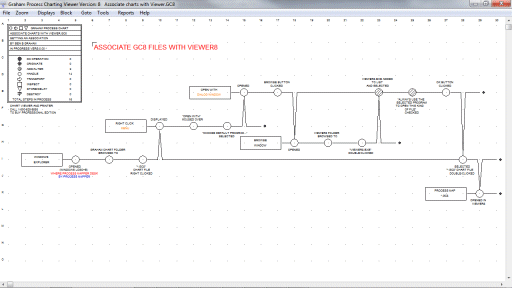
folder. Place all the files in a single folder. Set the links to the charts. HAVE THE RECIPIENT ESTABLISH
AN ASSOCIATION BETWEEN GC8 CHARTS AND VIEWER8.
How to set an association -- process map
How to set an association -- playscript procedure
If you are sending multiple charts, you can specify which chart Viewer8 opens.
Specifying a Chart
When Viewer8 is closed, it creates/updates a text file (graham8.ini) with the name of the chart file that
was being viewed (Note: if the software is launched from read only media, like a CD, it can’t
create or update the graham8.ini file). The next time Viewer8 is opened it will open the chart specified in graham8.ini.
If you are sending multiple charts, you can specify the chart that you would like opened by updating graham8.ini
and including it with Viewer8. If you would always like the same chart opened first, specify that chart in
graham8.ini and set the read/write attribute for graham8.ini to read only. (Right click on the chart
in Windows Explorer, select Properties and check the Read-only checkbox in the properties window.)
Distributing Multiple Charts
Whenever a chart is opened from the Viewer8 File menu, Viewer8 updates a text file (gflist.xxx) with the file name
(As long as the software is not launched from read only media). If the (gflist.xxx) file doesn’t exist, Viewer8
creates it. This file holds up to ten chart names that show up on the file menu. If you are distributing charts
on portable media, you can create and edit this file to make it available to the recipient.
Questions or Comments - Call 800-628-9558 or
